
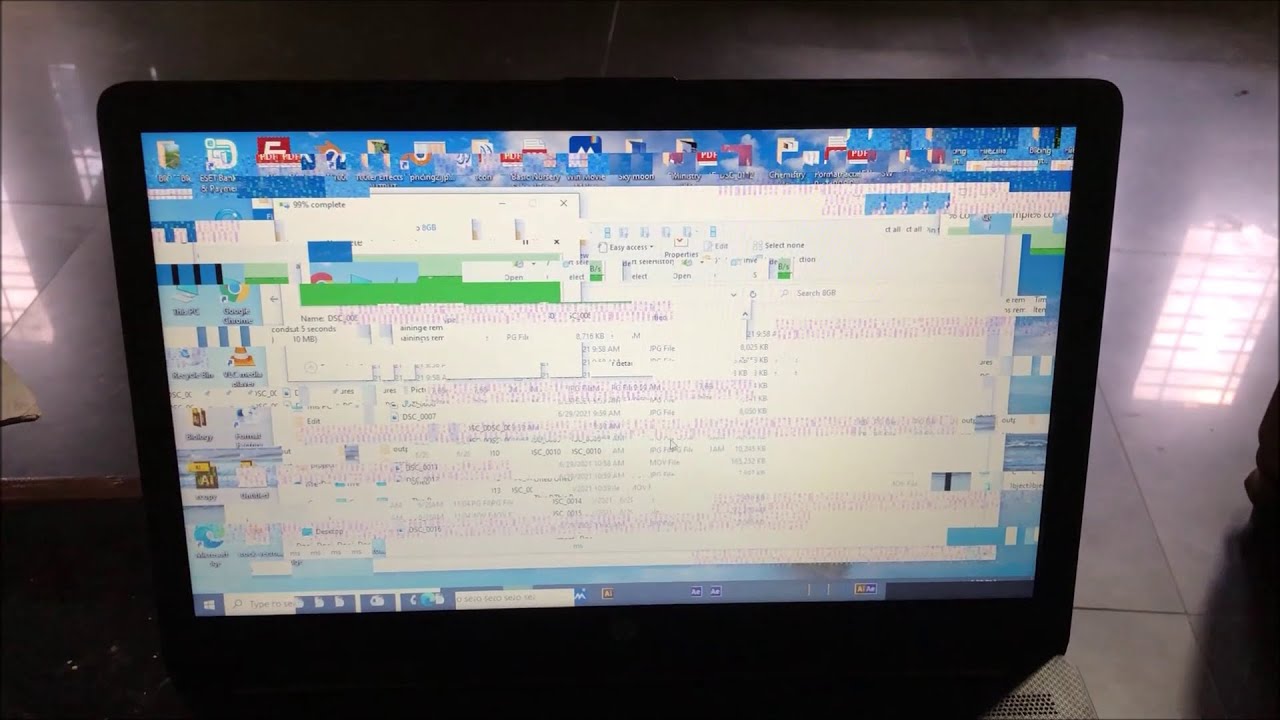
Hardware-Related Causes of Screen Flickering
Some problems with your device’s hardware can cause screen flickering. For example a loose cable between the computer and the monitor might make the screen flicker. If a cable is not connected properly it won’t send signals to the screen the right way. This can cause the display to flicker or go black. Checking the cables and making sure they are tightly connected can often fix the problem quickly.
Other times it might be the actual screen itself that is causing the flickering. If the screen has been dropped or damaged it could have broken parts inside. This can make the screen flicker a lot or show different colors when it shouldn’t. Sometimes fixing this might mean getting a new screen but checking for simple things like loose cables first is a good idea.
Software-Related Issues Leading to Flickering
Sometimes screen flickering happens because of problems with software. This means that the programs or apps on the device are not working properly. If an app has a bug or is not updated it can cause the screen to flicker. Updating the app to the latest version can help solve this issue. Also if you have too many apps open at once it can make the screen flicker because the device is working too hard.
Operating system problems can also cause screen flickering. For example if you are using an old version of Windows or another system it might not work well with your display settings. Updating the operating system can fix this problem. Sometimes just restarting the computer or device can make the screen stop flickering as it helps to reset everything back to normal.
The Role of Refresh Rates in Screen Flickering
The refresh rate of a screen is how many times the screen updates every second. If the refresh rate is set too low or too high it can cause screen flickering. For example if you change the refresh rate settings by mistake the screen may start flickering because it is not updating the picture fast enough. Making sure the refresh rate is set correctly can help solve this problem.
If you are using a monitor that supports different refresh rates you can try changing the settings to see if it helps. For most screens 60 Hz is a good refresh rate. If you are using a screen with a higher refresh rate like 120 Hz or more make sure your computer can handle it. If the computer cannot keep up it might cause the screen to flicker or show other problems.
Graphics Drivers and Their Impact on Display Stability
Graphics drivers are programs that help your computer display pictures and videos on the screen. If the graphics driver is not working well it can cause screen flickering. Sometimes when the graphics driver is old it may not work properly with the latest software or apps. Updating the graphics driver can help fix this problem and make the screen stable again.
In some cases installing the wrong graphics driver can also cause screen flickering. This can happen if you download a driver that is not made for your graphics card. If you are not sure which driver to use, it is best to go to the official website of the company that made your computer or graphics card. They usually have the right drivers for your device.
Common Troubleshooting Steps for Screen Flickering
If your screen is flickering there are some simple steps you can try to fix it. First restart your computer or device. Sometimes just turning it off and on can help solve the problem. If the flickering continues check the cables and connections to make sure everything is plugged in properly.
Another thing to try is updating your software and drivers. Make sure your apps operating system and graphics drivers are all up to date. If these steps do not solve the problem you can try changing the refresh rate settings or even connecting your device to a different monitor to see if the flickering happens there too. This can help you figure out if the problem is with the monitor or the device itself.
How External Devices Can Cause Screen Instability
Sometimes devices connected to your computer can cause screen flickering. For example if you have a printer external hard drive or another screen connected it can sometimes make the display flicker. This is because these devices can interfere with the display signals or make the computer work too hard.
If you notice screen flickering after connecting an external device try unplugging it and see if the flickering stops. If it does then the problem is probably with that device. You might need to update the drivers for the external device or use a different port to connect it.
Conclusion
Screen flickering can be very frustrating but most of the time it can be fixed with some simple steps. Whether the problem is with the hardware software or connected devices understanding what causes screen flickering can help you solve it quickly. Always start by checking for simple issues like loose cables or old software and then move on to more complicated fixes if needed.
Taking the time to learn about screen flickering can make using your computer tablet or phone much easier and more enjoyable. With the right steps you can fix flickering problems and enjoy a stable clear display without any annoying blinking or dimming.


